OCR Auto Clicker supports visual script creation. Below is a basic tutorial on how to use the application.
I. Creating a Script
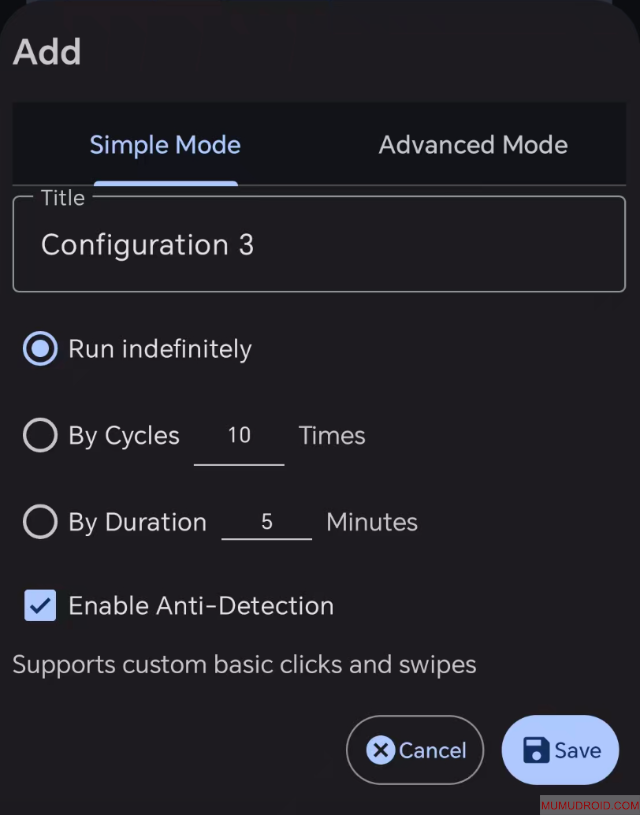
1. Simple Mode: Supports customized click and swipe actions.
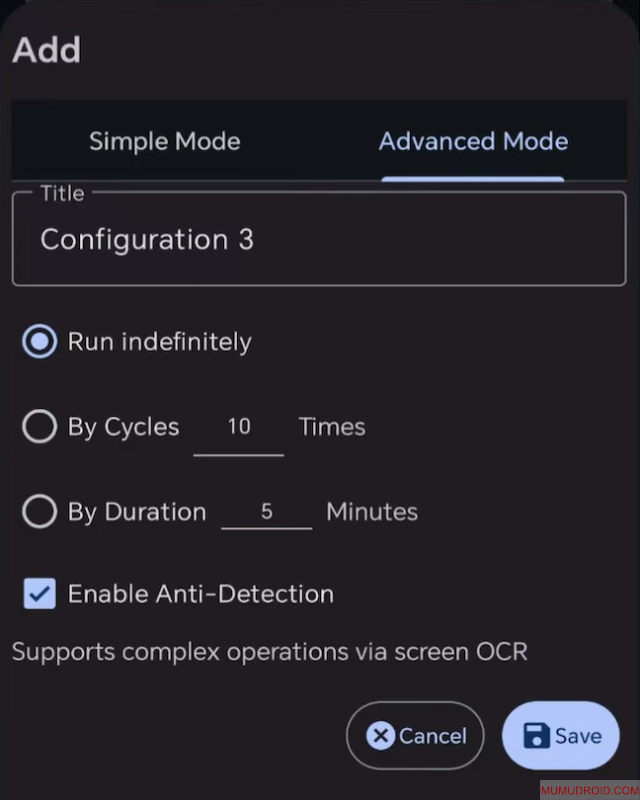
2. Advanced Mode: Supports OCR text recognition, allowing the execution of custom actions based on the recognition results.
II. Granting Permissions
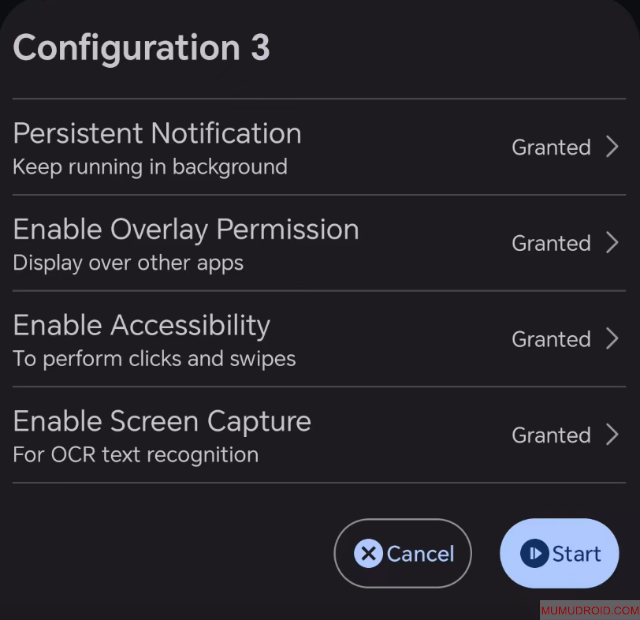
Please follow the on-screen prompts to authorize OCR Auto Clicker to use the following permissions (Security Note: This app is a standalone offline version; your sensitive information will not be transmitted over the network):
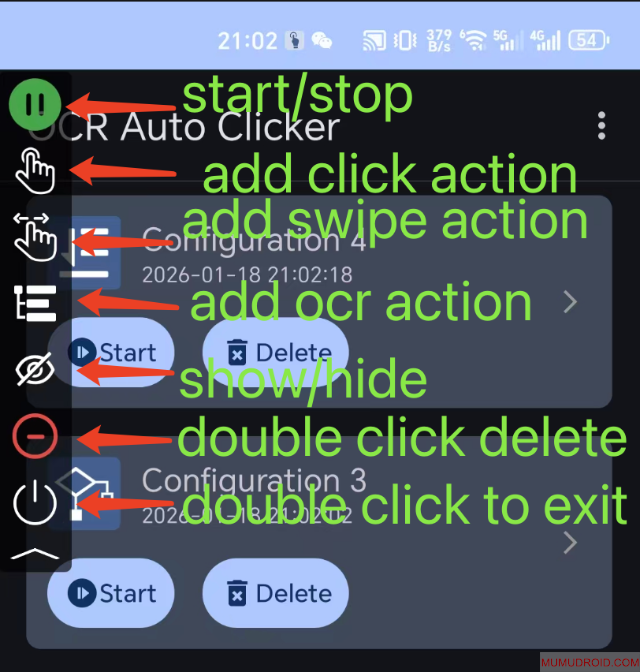
III. Floating Panel Button Function Descriptions
IV. OCR Text Recognition Function Description
Complex custom operations can be achieved based on OCR (Optical Character Recognition) text recognition. Due to the inherent limitations of OCR technology, text recognition may occasionally result in errors. Please use the actual content recognized by the OCR function as your trigger condition.
The system supports multiple text conditions; the action will be successfully triggered as long as any one of the specified texts is recognized.
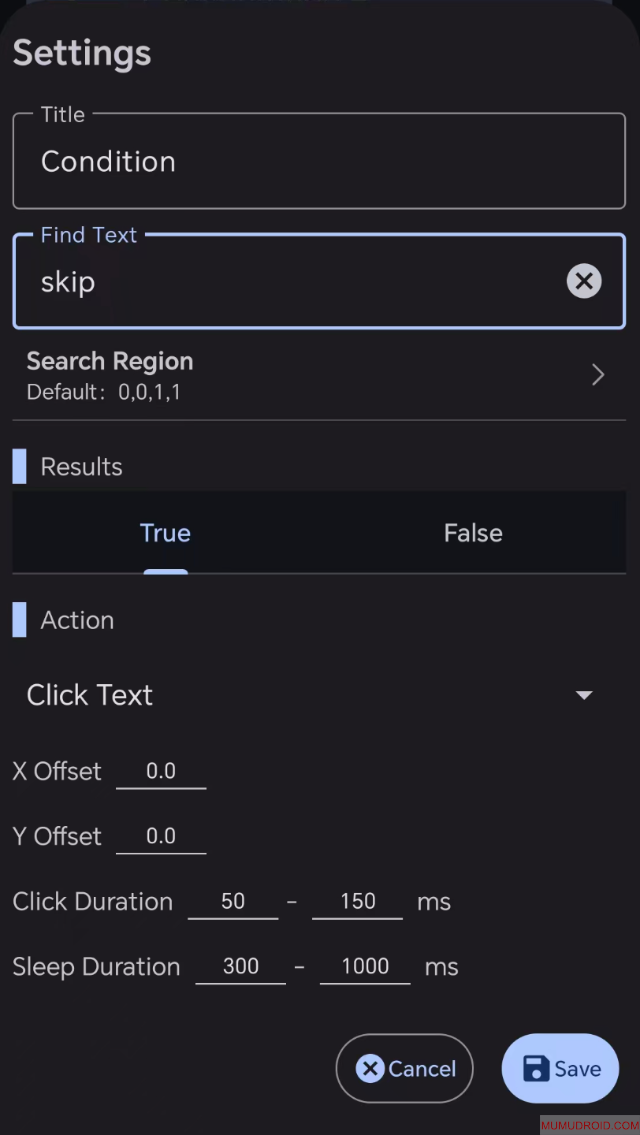
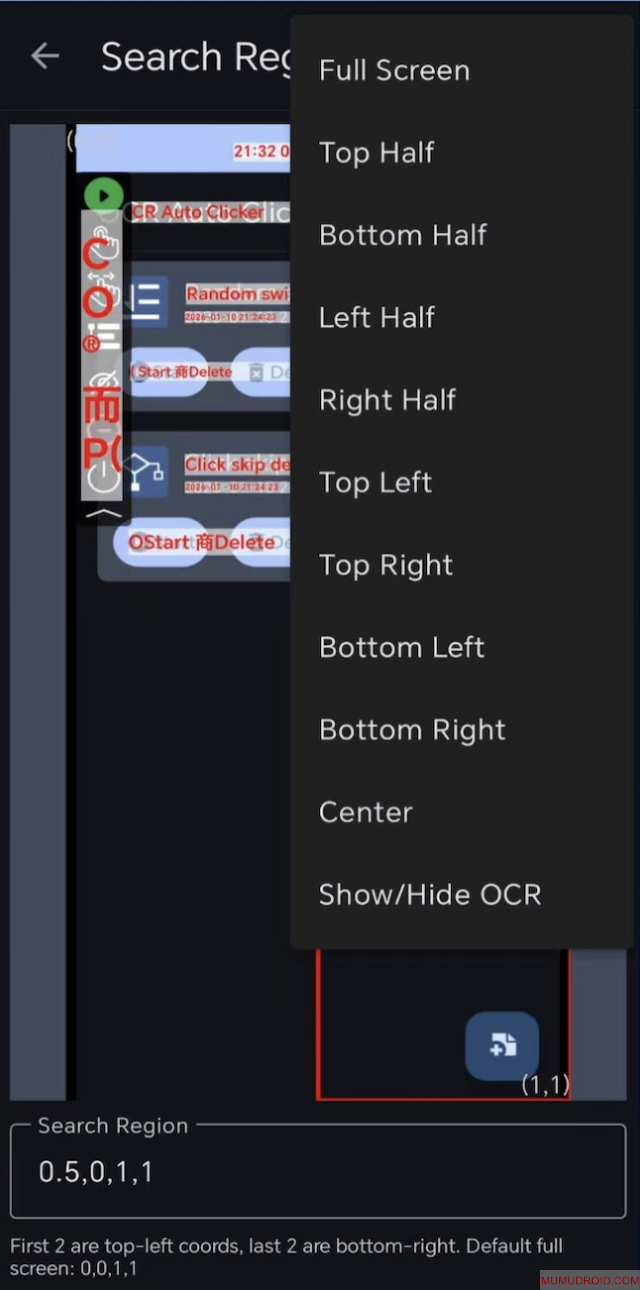
To achieve higher efficiency, it is recommended to set a reasonable "Search Range." You can also view the actual recognition results generated by the program (click the text to copy the result), as shown below:
V. Ultimate Anti-Detection Tips: Don't Let Your Script Be "Too Diligent"
Even if your individual clicks are simulated realistically, there is still a risk if the background logic reveals the following behaviors:
Excessively Long Online Time: Running continuous clicks for 24 hours without a break.
Perfectly Uniform Cycles: Executing tasks at exact, fixed intervals (e.g., clicking every 5.0 seconds precisely).
The "Straight Line" Trap: If a series of clicks always occur at the exact same height or along a perfectly vertical line on the screen, it serves as a red flag.